Category Archives: Hobbies

Home Assistant and Matter/Thread

A while back I made the move from HomeSeer to Home Assistant for my home automation platform.  Home Assistant has come a long way, and I think has a much more polished management interface, and overall, much more flexibility.  On top of that, it’s an open-source project, so no more license renewals.

Recently I thought it would be a great idea to add Matter/Thread support to my installation, and the ZBT-2 antenna seemed like the way to go.  So I ordered one, and since then, it hasn’t been as smooth of a journey as I had hoped.

What really helped was leveraging Copilot to help put together a configuration checklist after providing info about my network and Home Assistant hardware, and then through a few refinements of my prompts, I was able to finally get my first Matter devices added.

The checklist ended up with 4 phases, each with a number of steps:

  1.  Router configuration (some of these settings might be specific to my hardware)
    • Make sure mDNS us enabled
    • Enable IPv6 router advertisement
    • Enable Multicast enhancement
    • Turn off Multicast and Broadcast Control
    • Turn on IGMP Snooping
  2. ZBT-2 hardware and firmware setup
    • Connect ZBT-2 to a USB 2.0 extension cable, into a powered USB hub
    • Flash hardware with the Thread-only firmware
    • Configure OTBR, ensuring NAT64 and OTBR Firewall are both ON.
  3. Home Assistant network configuration
    • Enable IPv6 in HAOS Go to Settings > System > Network. Set IPv6 to Automatic.
    • Set Preferred Thread Network: Go to Settings > Devices & Services > Thread. Click the ZBT-2 network and select “Set as Preferred”.
    • Restart HAOS: Perform a Full System Reboot (not just a Quick Reload) to initialize the new firmware and network routes.
  4. Mobile & Commissioning setup.  Your mobile device acts as the ‘commissioner’ to pass credentials to the ZBT-2
    • Connect your phone to the same WiFi: Ensure your phone is on the same SSID and VLAN as the Home Assistant instance. I was pairing some light bulbs that only supported 2.4GHz wifi, so I also disabled the 5 and 6 GHz bands on my closest access point, and made sure my phone was bound to it.
    • Sync Thread Credentials: In the HA Mobile App, go to Settings > Companion App > Troubleshooting > Sync Thread Credentials.
    • Pair via Matter Flow: In HA, go to Add Integration > Matter and scan the device QR code.

This worked for me – hopefully it helps anyone else out there having challenges with Matter/Thread in Home Assistant!

New Networking Gear

I’ve made some updates to my home network with the addition of some new hardware.  The key piece is a UniFi Dream Router 7 (UDR7).  I’ve always appreciated routers that provide more control over network configurations, but the UniFi OS and controls provided in this router go over and above anything I’ve ever seen in a consumer/home router.

It did take some planning, and even more time getting the configurations set and working properly.  I found this YouTube video (and channel) to be very helpful in getting everything  configured.

My current network was running off the Telus router and an ASUS ROG AC5300, and a couple Netgear managed switches so that I could implement some VLANS.  With the UDR7, I can create the VLANS within the same management interface, and associate Wifi connections to them as well.  The ASUS router had no VLAN functionality, so I had used some Netgear managed switches with their own interface to provide this – and there was no way to tie a wifi network to the vlan network. The UDR7 completely changes that.

Secure your home network

Our home networks are become busier places.  Working from home, more wi-fi enabled light bulbs and switches, home automation, tablets and smartphones all add to the complexity.

Shortly before the pandemic, I had upgrade my service to fibre and gigabit bandwidth.  With the new service came a new modem/router, and a very dumbed-down management interface that provides minimal control over the network.

My previous service provider provided a modem/router that ran in bridged mode, so I was able to bypass their router and use my own router.  The router has a very rich management interface, so I wanted to keep using it.  It also wasn’t that old.

So looking at the devices on our home network, I was able to divide them up into 3 categories:

  • work computers
  • family computers, tablets, and phones
  • home automation devices, Google Home or Mini’s, and a couple appliances

I wanted to set things up so that family computers couldn’t see or access anything else on our work computers, and also isolate the home automation, Google devices, and assorted wi-fi enabled light bulbs and switches from everything else.

One function my router was missing was the ability to create VLANs.  I purchased a small Netgear managed gigabit switch to to do this.  I connected one of the ethernet ports of the service providers router to the Netgear switch, and another ethernet cable from the provider router to my router.

Basically, I use the service provider router to provide a guest wifi network, and use it’s ethernet outputs to connect my own router and a managed switch.  The managed switch provides 3 VLANs for work computers and our home automation hub.  My router is configured so that our IoT devices operate within it’s guest network, and the rest of the router is use for family computers, printer and phones.

In Canada, we have access to an excellent DNS service, called Canadian Shield.  It provides an additional layer of security for the family – and I have my router configured to use it.

Of course there are also the standard things needed to ensure your home network is secure:

  1. Make sure any default passwords have been changed on your router – and use STRONG PASSWORDS.
  2. Set your router to update it’s firmware automatically.  Most manufacturers are pretty proactive to get their firmware updated as new threats and bugs are discovered.  Make sure the manufacturer is proactive and providing timely updates – and if it isn’t, seriously consider purchasing a new one from a manufacturer that is proactive.


Homeseer update

Things have been rocky lately with my Raspberry Pi running Homeseer – over the past couple weeks it was randomly stopping to respond.  This began after attempting to update the system to the latest stable version (and being lazy I forgot to do a complete backup!).

After reflashing the micro SD card at least 4 or 5 times, I bought a couple new SD cards to use.  Tried a couple more times and I thought I had things back, but 2 days later it all halted again.  Enough with the Raspberry Pi.

I decided to get a license for HS4 Standard, and run it on an older Windows 10 workstation I have.  The installation was a breeze – although I did have a hiccup when adding the interface – was a bit of a guess choosing the Sigma UBZ interface (I have a Homeseer SmartStick +), and then the COM port (1 or 3).

Service is up and running nice now, and a couple events set up – just have to work on them more and get my garage door events rebuilt and running again.

Planning the upgrade, or creating a monster

The Gecko was running for a bit, but I’m going to make some changes to it.  The Z axis is messed up, and slips once you try to move about 50mm above the bed.

I’ve been following the different Voron builds lately, and I really like the gantry support used in the Voron 2.4 – using linear rails, steppers and belts at each corner.  I also like the electronics arrangement – particularly the DIN rails to mount everything to.

I would also like to build a Voron 0.1 – the small size is amazing, as well as the speed.  I first saw it on the CNC Kitchen youtube channel.

So here’s my initial checklist:

  • modify the existing gantry of the Gecko to use the Z drive approach of the Voron 2.4.
  • I like the Voron 0.8 approach to the electronics – mounting them at the back of the printer.  Would be so much easier to work on, rather than flipping the printer over.
  • replace the Lerdge S board with a BigTreeTech Octopus.
  • I want to move away from the E3D Titan extruder, and will see if I can use the Afterburner or StealthBurner tool end designs with the current Gecko gantry.  Ultimately I may just end up building a new gantry as well, and just convert the Gecko completely to a Voron instead of a Geckostein 🙂

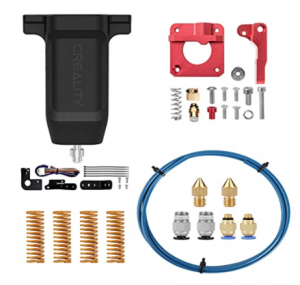
I’ve set up an Ender 3 v2, and for the most part, it is stock.  I did pick up an upgrade bundle from Amazon, and also a Micro Swiss all metal hotend from RepRapWarehouse.

However, I’ve only installed the CR-Touch (and updated the firmware), and the bed spring upgrades –  and I’ve been very happy with the prints – PLA, PETG, and ABS – very impressive for such an inexpensive printer!  I’ll hold off with the rest of the upgrades until stuff actually fails. When that happens, I think I might also switch to the Micro Swiss direct extruder as well – but we’ll see!